

Decisions
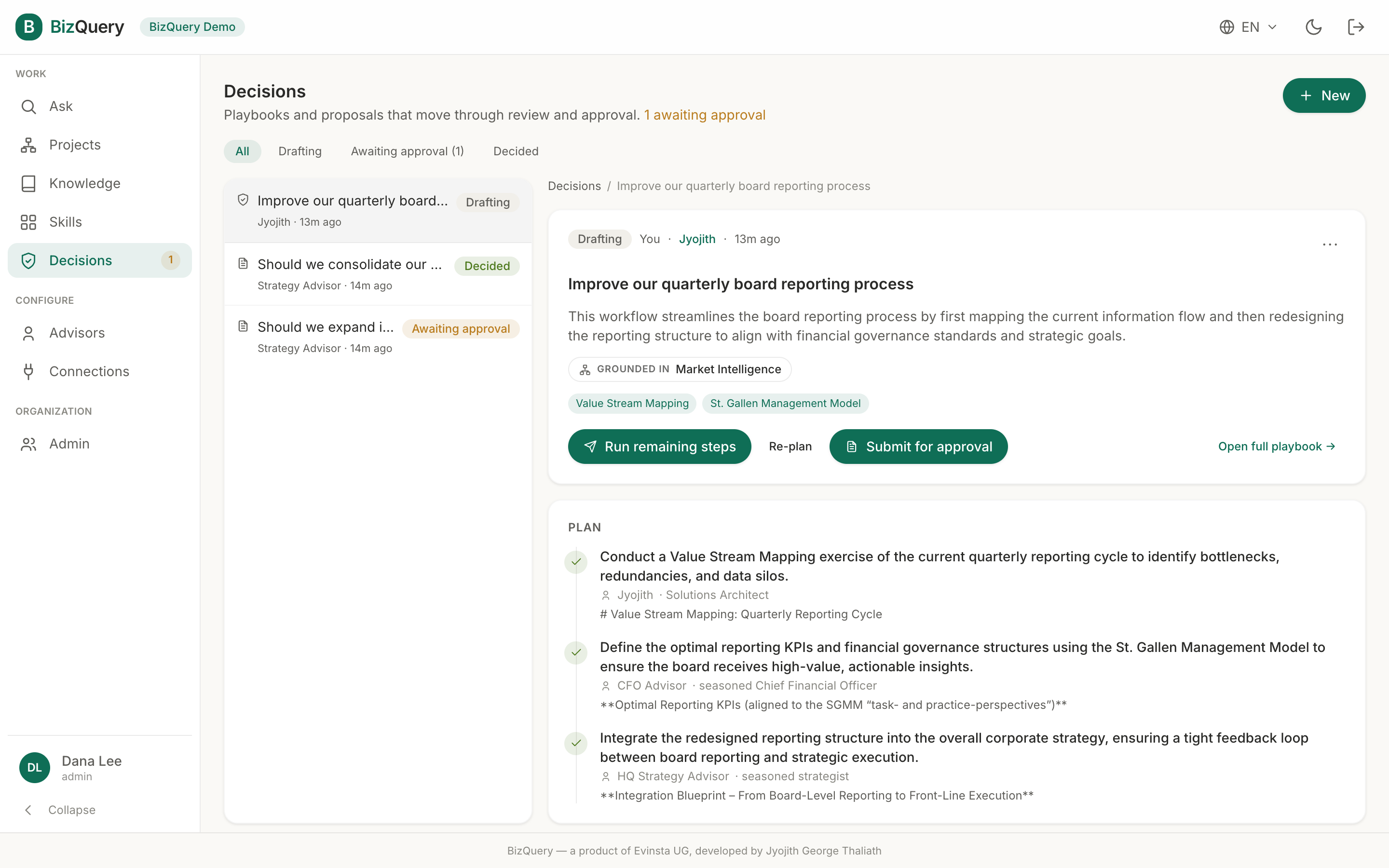
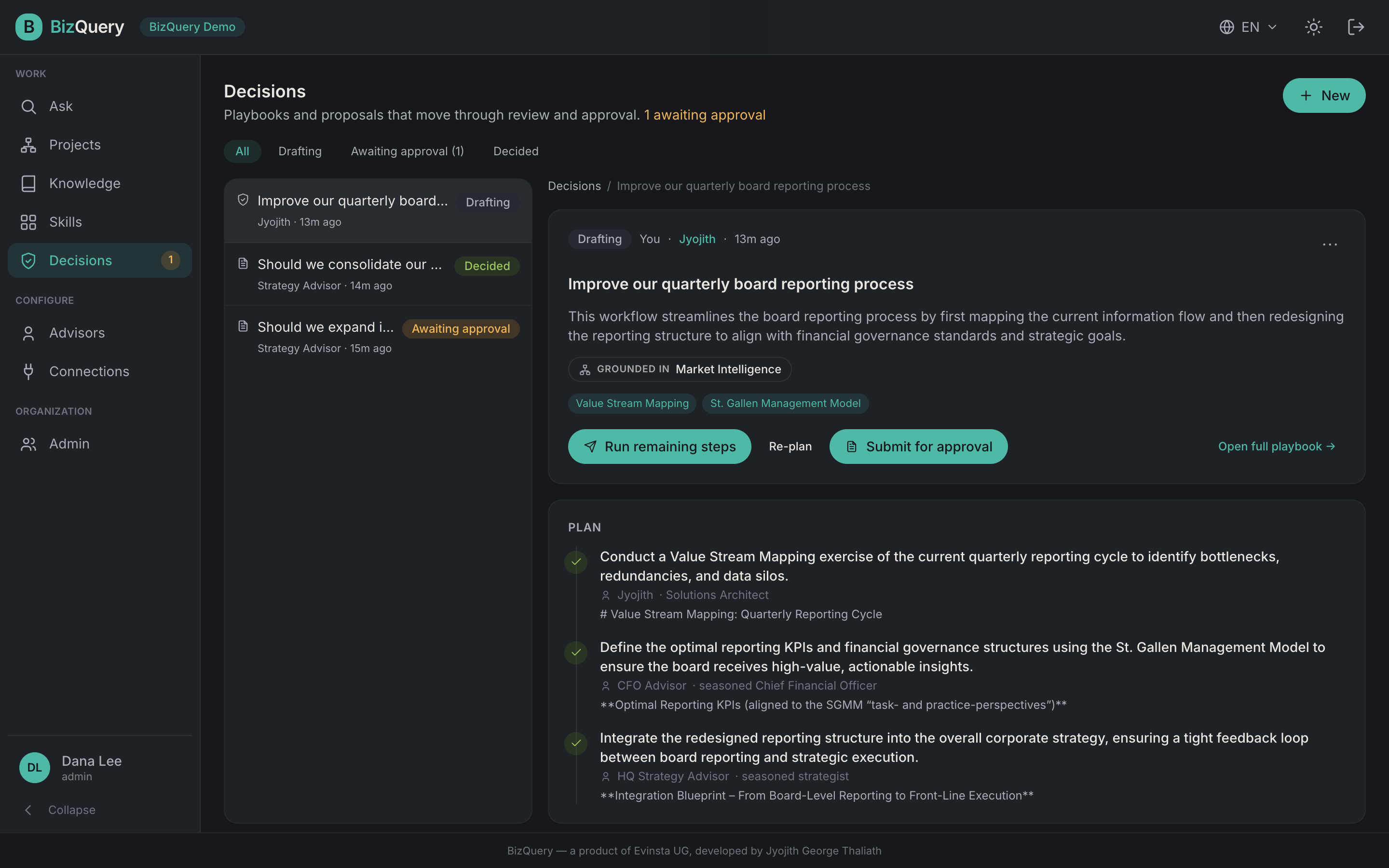
Decisions is where everything that needs a human sign-off lives — a playbook (a multi-step plan an advisor orchestrator works through) or a proposal (one advisor’s recommendation on a question you pose). Both are the same governed lifecycle underneath: an advisor drafts, and a human decides before anything with an external effect happens. It’s an organization feature.
Starting a decision
Click New and pick one:
- New playbook — pose a goal (e.g. “Improve our quarterly board reporting process”) and the orchestrator drafts a multi-step plan, delegating each step to the best-suited advisor.
- New proposal — pick an advisor and describe the decision you need help with; the advisor drafts a single grounded recommendation.
The three stages
Every decision moves through one of three stages, shown as filter pills at the top of the list (with a live count on Awaiting approval):
- Drafting — a playbook you’re still shaping, before it’s submitted. (Proposals go straight to Awaiting once requested — there’s no draft stage for them.)
- Awaiting approval — submitted; waiting on a checker or admin.
- Decided — approved, rejected, or (for playbooks) completed and archived.
Each row in the list shows the decision’s kind (playbook or proposal), its title, the advisor and how long ago it was touched, and a stage chip.
A drafting playbook
Opening a drafting playbook shows its Plan — the numbered steps, each with its advisor and a preview of its output. While it’s drafting you can:
- Run remaining steps — run each advisor step grounded over its sources, with citations.
- Re-plan — redraft the whole plan for the same goal, optionally with extra guidance on what to change.
- Submit for approval — once the steps you need are done, send it for review.
- Open full playbook → — step into the full orchestrator view for deeper editing: refine a single step, skip or delete a step, add a new advisor step, add a report step (compile the result into a document on approval), or add a human checkpoint.
Ground a playbook in one or more projects — every step then searches the union of those projects’ libraries plus the advisor’s own sources. A “Grounded in …” pill on the detail pane shows the current scope.
Recommendation and evidence
Once a proposal (or a submitted playbook’s linked recommendation) exists, the detail pane shows a Recommendation card — the advisor’s markdown answer — and an Evidence list: every citation the advisor drew on, with the source document and page. If a decision was rejected or edited, a reviewer note explains why.
Deciding
A checker or admin sees verdict controls once a decision reaches Awaiting approval:
- Approve — accept it as-is.
- Reject — decline it, with a reason (required).
- Suggest a change (proposals only) — describe, in plain language, what to change; the advisor regenerates the full recommendation. Repeat until it’s right, then approve.
Anyone who isn’t a checker or admin sees a note explaining they can’t record a verdict, instead of the buttons.
- Separation of duties: a non-admin who requested a decision can’t approve it themselves — a different checker must. Admins are exempt and may sign off their own, since they sit at the top of the organization.
- Decisions are final: an item is decided once.
Deleting and archiving
Proposals can be deleted by an admin. Playbooks can be deleted by an admin or the person who created them. A decided playbook can be archived by an admin — archived and completed items drop out of the active list behind a “Show archived” toggle. Every playbook run is durable — its steps, outputs, grounding, and approval state are saved; reopen a past one to review it or pick up where you left off.