

Ask
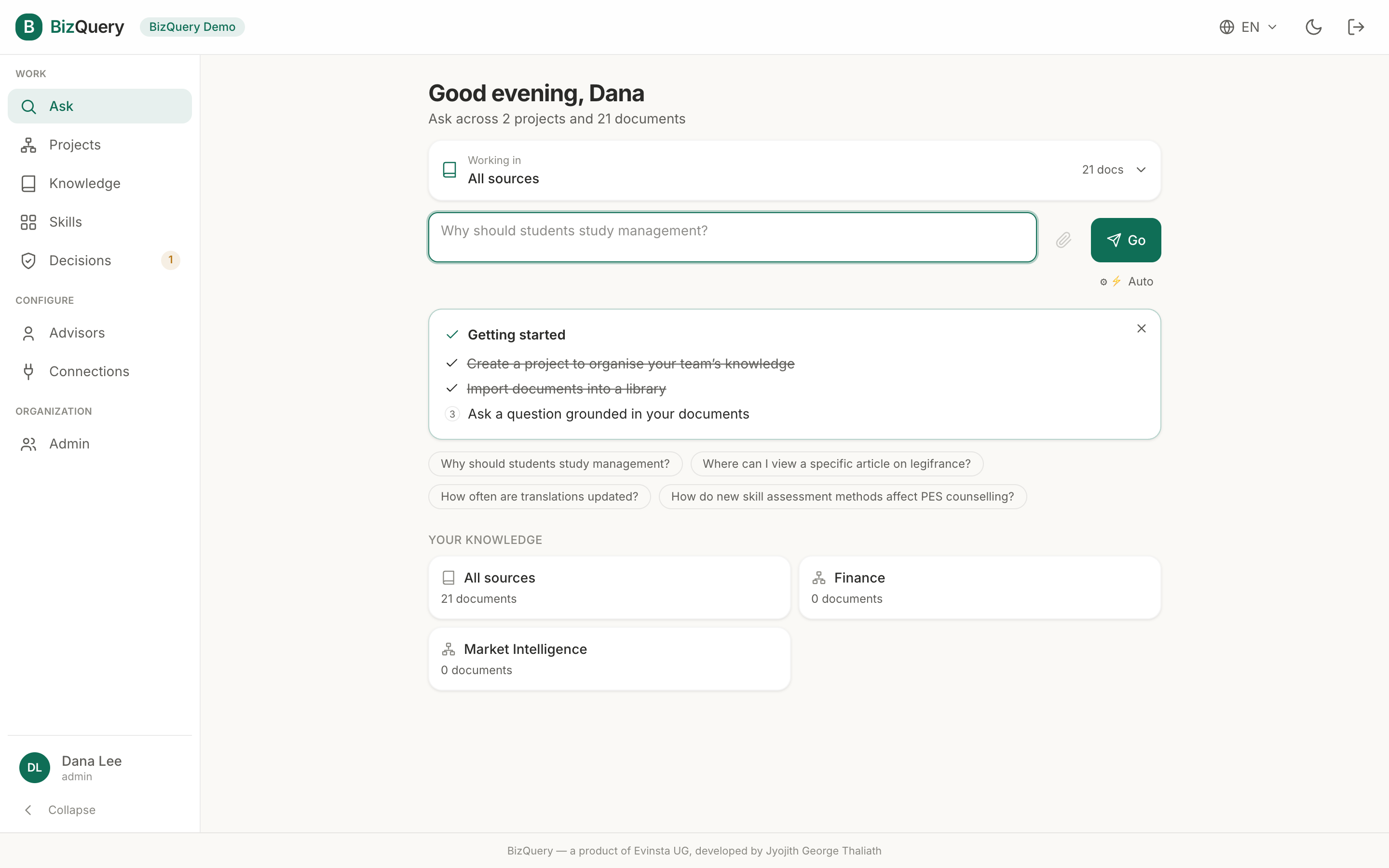
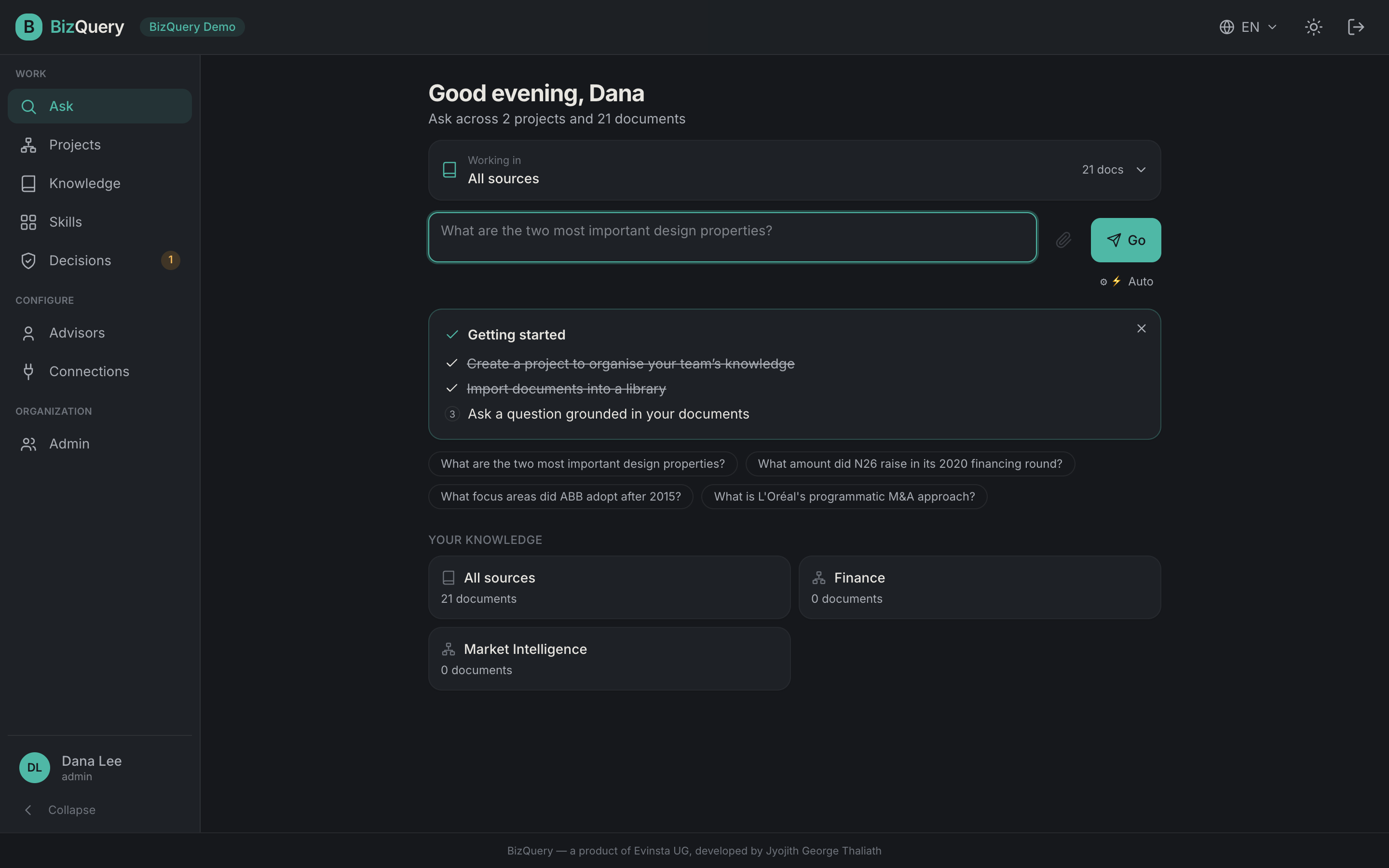
Ask is BizQuery’s front door — one box where you either ask a question and get a grounded, cited answer, or state a goal and hand it to Decisions as a new playbook. Everyone in a workspace can use it.
The home
Ask greets you with what you can search — “Ask across N projects and M documents” — a composer, your project cards, and your recent conversations to jump back into. The composer has:
- a “Working in {project}” switcher that sets the scope (a project’s libraries, or All sources — everything your organization shares). Your choice is remembered.
- a model picker — a specific model, or Auto (which routes each question to a fast or a stronger reasoning model for you).
- a paperclip to attach a document and ask about it right away; it indexes into your knowledge and is searchable while it processes.
That’s the whole scope model: pick a project, and ask.
Reading the answer
The advisor searches your project’s sources and answers in plain language. Below each answer a
collapsible “N sources · M tool calls” strip reveals the evidence — the exact passages cited and
every tool call made. Each source is a clickable citation that opens the document in the viewer at
the page the passage came from, so you can verify any claim. Inline [1], [2] markers point at the
sources.
Working with a conversation
- Regenerate — not happy with an answer? Re‑run it, optionally with a different model.
- Save to project — keep a useful conversation as a document in the project’s library, so it becomes searchable and reusable later.
- Create a plan — turn a conversation into a playbook in Decisions: BizQuery summarizes the thread into a goal and drafts a plan from it.
- History — conversations are saved; reopen one to continue (it reuses the model it started with), rename it, or export it to PDF.